Features

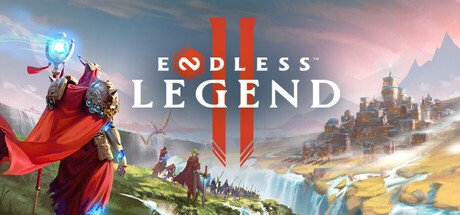
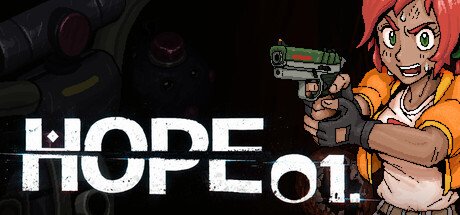
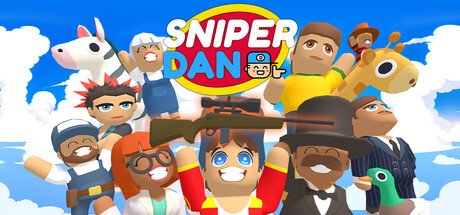
Steam library looks inconsistent for a reason: some games have beautiful vertical capsule art, some have a stretched logo, and any non-Steam game you added shows a blank grey box. SteamGridDB fixes all of it, and searches for it are spiking right now.
Here is exactly how to use it, including the one-click method most people do not know about.
What SteamGridDB actually is
SteamGridDB is a community-run database of custom Steam artwork. Users upload replacement art for thousands of games, and you apply it to your own library. It is free, and it does not modify your games in any way — only how they look in your library.
The four artwork types
- Grid — the vertical capsule in your library, 600×900
- Hero — the wide banner at the top of a game page, 1920×620
- Logo — the transparent title graphic layered over the hero
- Icon — the small icon in list view and shortcuts
Replacing all four is what makes a library look genuinely uniform rather than just partially fixed.
Method 1: Manual, no extra software
This works on any Steam install and requires nothing but a browser.
- Go to steamgriddb.com and search for your game.
- Pick the artwork you want and download it.
- In Steam, right-click the game in your library.
- Choose Manage → Set custom artwork.
- Select the file you downloaded.
For the hero and logo, open the game page first, then right-click the background or the logo itself to get the same option for those specific assets.
Method 2: SGDBoop, the one-click way
Doing four assets across a hundred games manually is miserable. SGDBoop is SteamGridDB official companion app, and it turns the whole process into a single click.
- Download SGDBoop from the SteamGridDB site and install it.
- Browse artwork on the website as normal.
- Click the BOOP button on any asset.
- It applies directly to your Steam library, instantly.
You do not need to download files, find the right folder, or right-click anything. This is the method to use if you are doing more than two or three games.
Method 3: On Steam Deck
Steam Deck users can install the Decky Loader plugin framework and add the SteamGridDB plugin, which lets you browse and apply artwork directly on the device without switching to desktop mode.
This is particularly useful on Deck because non-Steam shortcuts — emulators, launchers, third-party stores — are exactly the entries that show up blank, and those are the ones you most want to fix.
The real reason people use it: non-Steam games
Any game you add to Steam as a non-Steam shortcut — an emulator, an Epic or GOG title, a browser game — gets no artwork at all. It appears as a grey rectangle with a filename.
SteamGridDB is the standard fix. Adding proper grid, hero, logo and icon art to those shortcuts makes a mixed library look like a single coherent collection, which is the entire appeal.
Common problems
The artwork did not change
Restart Steam. Custom artwork usually applies immediately, but the client occasionally caches the old asset until it reloads.
My custom art disappeared
Custom artwork is stored locally in your Steam userdata folder, not in the cloud. It does not sync between machines, and a fresh install will lose it unless you back that folder up.
The image looks stretched
You almost certainly used a grid image where a hero was needed, or vice versa. Check the dimensions against the list above — 600×900 vertical for grid, 1920×620 wide for hero.
Other Steam tools worth knowing
SteamGridDB is one of a whole ecosystem of third-party tools that do things the Steam client will not. See our full directory of the best Steam tools and game discovery sites, covering SteamDB for price history, Steam 250 for review-weighted rankings, and IsThereAnyDeal for historical low prices.
Frequently asked questions
What is SteamGridDB?
SteamGridDB is a free community database of custom Steam library artwork. Users upload replacement grids, heroes, logos and icons, which you can apply to your own Steam library without modifying any game files.
How do I change Steam library artwork?
Right-click a game in your Steam library, choose Manage, then Set custom artwork, and select your image. For hero and logo assets, open the game page and right-click the background or logo directly.
Is SteamGridDB safe?
It only changes how games appear in your library and does not touch game files or your account. Custom artwork is stored locally in your Steam userdata folder.
What size should Steam grid artwork be?
Grid images are 600×900 vertical, hero banners are 1920×620 wide, logos are transparent PNGs, and icons are small square images. Using the wrong type is the most common cause of stretched artwork.
Does custom Steam artwork sync between computers?
No. It is stored locally in your Steam userdata folder rather than in the cloud, so it does not transfer to another machine or survive a clean install unless you back up that folder.